

How can I allow-list my Roku channel in the Bitmovin dashboard?
Log in to your account on https://dashboard.bitmovin.com
-
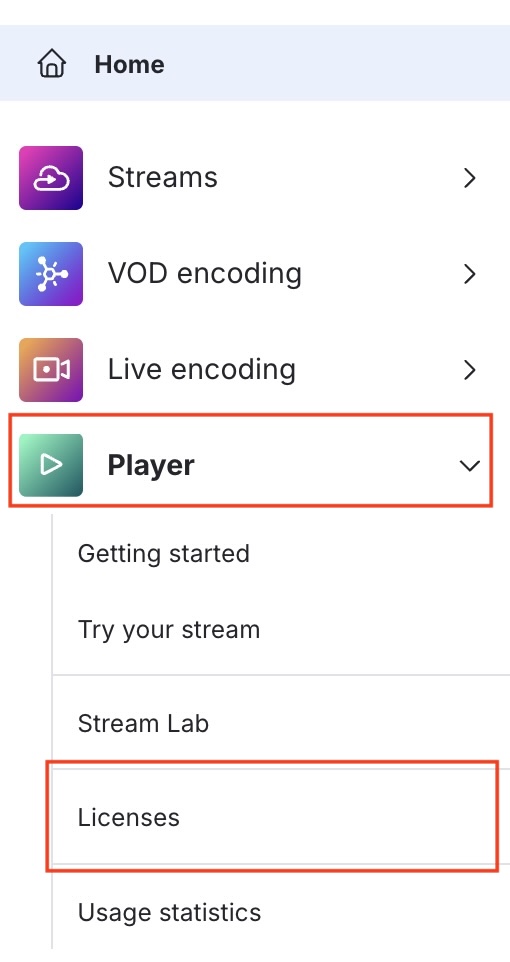
Navigate to Player -> Licenses (left column)
-
Select your desired license. In our example here, we'll pick the
default-license. Compare with the configuredkeyin your Roku channel to find the right license!
-
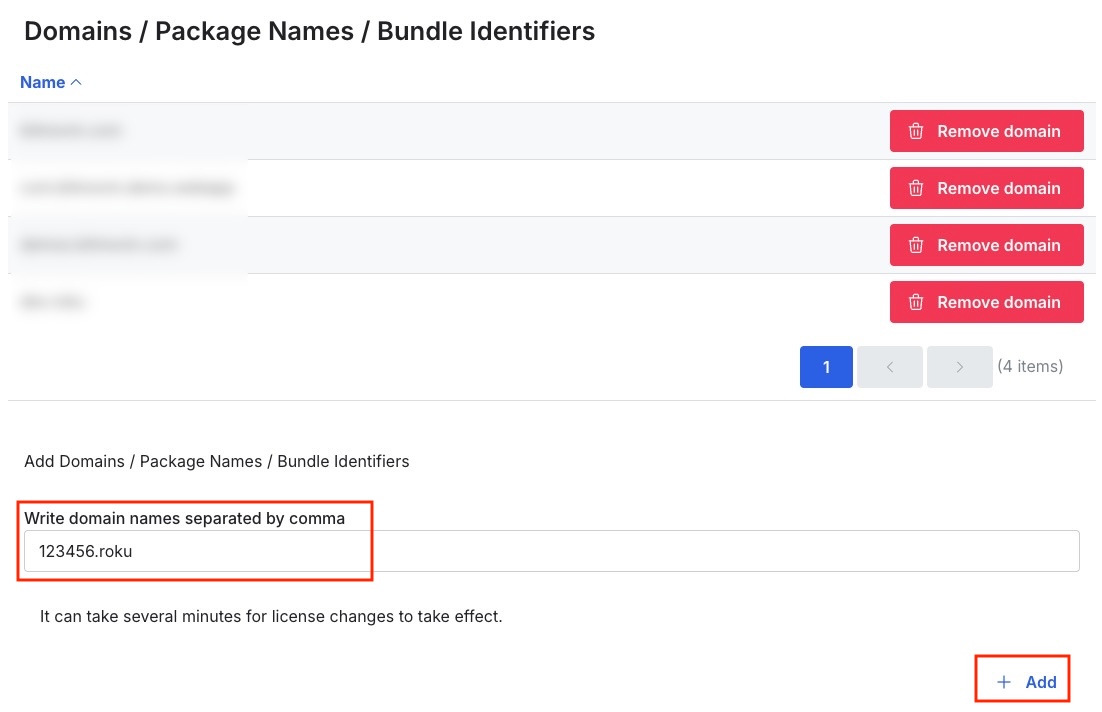
Scroll down to the Domains / Package Names / Bundle Identifiers section
-
Enter your Roku channel ID with the suffix
.rokuand hit the Add button.- Example: If your channel ID is
123456, add123456.roku. - Note: You can either get your channel ID by logging into the Roku developer dashboard or checking the output of
roAppInfo.getID().
- Example: If your channel ID is
License requests from your channel should now pass, enabling you to use the Bitmovin player to power your Roku apps 🎉
Updated 9 months ago
What’s Next
Check out our other guides related to setting up the Bitmovin Roku SDK or configuring licensing for your player below:
Did this page help you?