

Picture-in-Picture requirements
Verify the iOS app-level requirements needed for Picture-in-Picture (PiP) to work with Bitmovin Player after PiP has already been set up in the player
PiP can be disabled by the user under iOS Settings → Picture in Picture. When this setting is off at device level, PiP may still appear to be supported but will not work. This cannot be changed programmatically since it's a user choice on their specific device.
Before you start
- Confirm you've already configured PiP support in Bitmovin Player as per our guides:
- Test on an iPad first, since iPhone's System UI does not always expose PiP.
Required app configuration
-
Enable BackgroundPlayback
-
In your Xcode target settings, enable Audio, AirPlay, and Picture in Picture under background modes:
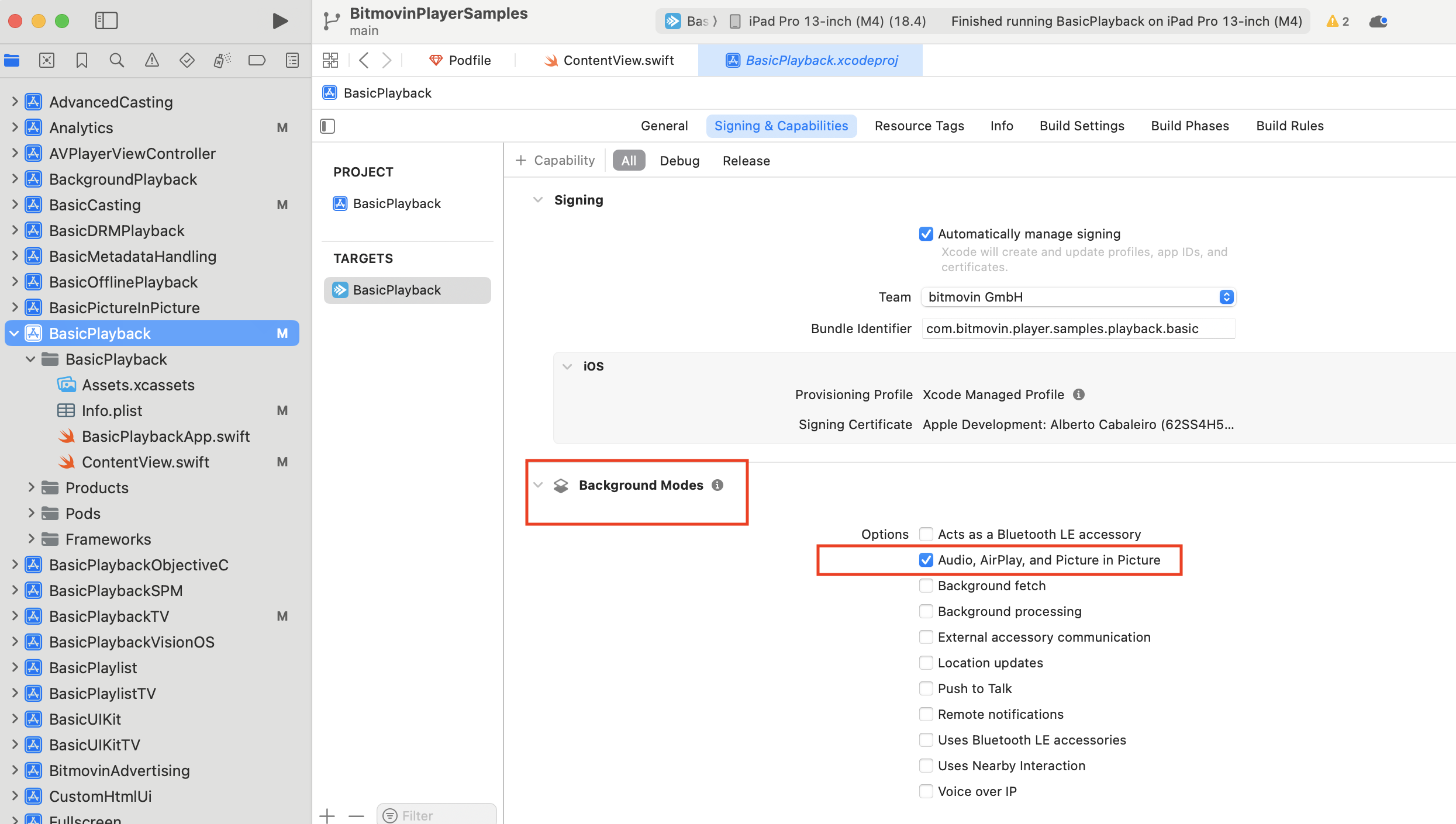
-
AVAudioSessionCategoryPlaybackneeds to be present on the audio session to indicate that audio playback is a central feature of the app:func handleAudioSessionCategorySetting() { let audioSession = AVAudioSession.sharedInstance() // When AVAudioSessionCategoryPlayback is already active, nothing to do here guard audioSession.category.rawValue != AVAudioSession.Category.playback.rawValue else { return } do { try audioSession.setCategory(AVAudioSession.Category.playback, mode: AVAudioSession.Mode.moviePlayback) } catch { print("Setting category to AVAudioSessionCategoryPlayback failed.") } }When this category is set, the app's audio continues with the Ring/Silent switch set to silent mode (iOS only), and the app can also play background audio on the Audio, AirPlay, and Picture in Picture background modes
If PiP still does not work
PiP appears supported but does not start
Check whether PiP is disabled in the device’s iOS settings. This is a system-level setting and cannot be overridden by the app.
PiP works inconsistently across devices
Test on an iPad before concluding that PiP is broken. On iPhone, the system UI does not always offer PiP.
PiP does not continue outside the app
Verify that BackgroundPlayback is enabled, the Xcode background mode is configured, and the audio session category is set to playback.
Updated 5 months ago